Description
This guide provides steps for installing and registering with Duo, the university's service for Multi-Factor Authentication (MFA).
What You'll Need
- Mobile device (smartphone)
- Duo Mobile app
- laptop or desktop computer
Step-by-Step Instructions
Step 1: Installing Duo Mobile
- Before registering with Duo, we highly recommend installing the Duo Mobile app on your preferred mobile device, e.g., your smartphone.
- The app is available from the Apple App Store, Google Play or the Microsoft Store.
- Important! There are multiple Duo apps. Please install the Duo Mobile app with the green logo.

- During app installation, click “Allow access to camera” so that you can scan the barcode that will be generated during Duo registration.
Step 2: Register with Duo
- From your laptop or desktop computer, visit: https://myaccount.ucdenver.edu/CUSecure to claim your account.
- If you have already claimed your account, visit My.CU.edu
- Log in with your CU network username (type in your “username” not your email address) and password. The Duo Authentication “Enable Secure Verification” message will appear.

- Select the button to "Enable Secure Verification".
- A "Get Started" screen will pop up, select the button to move to the next step.

Step 3: Add Device
- You will be directed to a screen to add a device. Select "Duo Moible" from the list of options.

- Add your phone number and click the check box to agree to reveive messages related to authentication from Duo. Once these fields are compelte, the "Continue" button will turn blue for you to proceed to the next step.

- After adding your phone number, it will prompt you to send a passcode. Click the button to "Send Me a Passcode."

- Enter the passcode Duo texted to your phone number and click "Verify."

Step 4: Continue on Duo Mobile
- You will be prompted to download the Duo Mobile app. If you already did so before starting this process, you can click "Next". If you need to download it, please do so before proceeding.

- A QR code will pop up, scan it with your camera to activate the Duo Mobile app on your device.

- Once you scan the code and activate Duo Mobile, you will get a confirmation screen.

- Click "Continue" and you will be prompted to add one more device. Select "I don't want to add more devices".

Setup complete! You can now use Duo Mobile to authenicate into CU secure resources.

Troubleshooting & Tips
- If you need further assistance with setting up Duo, please contact the Service Desk at 303-724-4357.
Frequently Asked Questions (FAQ): Multi-Factor Authentication with Duo
What university systems require MFA?
MFA with Duo is required to access the university's VPN, remote desktops (VDI), Microsoft 365 applications, and the student and employee portals.
In addition to MFA, a more secure network access layer has been implemented requiring the use of an up-to-date browser and operating system version on devices used to access the university network. Review the table of supported devices and operating systems below for helpful information.
How will authentication to Microsoft 365 applications work?
MFA is required for Microsoft applications including Outlook when on-campus. ISS recommends that the Microsoft desktop or mobile device applications are installed so that you only need to authenticate about every 90 days. If you use a web browser for email, for example, you will be prompted for authentication with each new browser session.
How it works
MFA for Microsoft 365 relies on a token that is placed on your device when you access these applications while connected to the network. This means that when you connect to your email via Outlook or your OneDrive (for example) while on campus, or you connect from home using the VPN or virtual remote desktop and applications, a token that is good for up to 90 days will be placed. However, if you access Microsoft 365 browser-based applications exclusively, you will be challenged each time you connect remotely.
Important: Authentication tokens are good for up to 90 days, but there are several factors that may cause the need to re-authenticate earlier than 90 days, even when using the Outlook client. These include changing your network password or an event that damages the token.
Am I required to use the Outlook app on my phone or mobile device?
ISS supports Microsoft Outlook for university email using Multi-Factor Authentication (MFA). Faculty, students and staff are encouraged to install the Microsoft Outlook app on all your computing devices including mobile phones, tablets, laptops and desktops.
Included with the MFA for Microsoft 365 project is a back-end security upgrade that requires a more modern browser and operating system. If you have an older device, browser, and/or operating system, you may need to upgrade to access university systems.
The team will make their best effort to help with troubleshooting issues with native clients, but may not be able to assist. As a reminder, the entire suite of Microsoft applications - including Outlook - is available to download on up to 5 PCs or Macs, and your mobile devices.
Can I authenticate if I don't want to use my mobile phone?
Authenticating using the Duo app on your smart phone is the easiest way to authenticate; however, there are other methods by which you can authenticate, you may:
- Register a landline - this can be your home phone, a family member’s phone, or the phone in your hotel room when travel reopens. There is no limit to how many landlines can be registered for Duo to call to authenticate.
- Register your tablet (iPad or Android) to authenticate and Duo can utilize the pass code or send a push option without having to use a mobile number.
Is there a Duo application for desktop or laptop computers?
No, Duo does not offer a computer application for authentication. You need to use a separate device to verify your identity - either a smart phone, tablet, or landline phone. Duo Mobile is available for Apple, Android, and Windows devices.
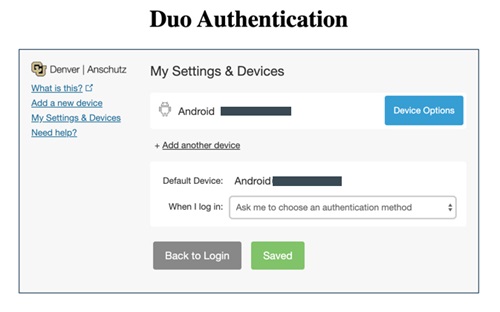
How do I make changes to my Duo settings such as adding another phone number?
You can make changes to the information in Duo at any time including adding additional devices and phone numbers. To access your Duo account, go to: https://passport.ucdenver.edu/CUSecure.php
- Type in your university username and password.
- Click on My Settings & Devices.
- You can make changes from this window including managing your preferred authentication method.
What if I don't have access to an Internet connection?
A Duo passcode lets you log into your account when your device is without an internet connection - similar to text messaging. You can select the Passcode option on the Duo Authentication page. Be sure you clicked "Allow notifications" during the installation process. You will have five minutes to enter the passcode texted to your phone; once the passcode is entered, you can log in.
I already have Duo installed for another organization, can it be used for CU Denver | Anschutz?
Yes, Duo can be installed once and used to manage multiple accounts. You will need to complete the registration for the CU Secure account. After you register, you’ll see the additional CU Secure profile displayed on your Duo app.
What happens with my data and password while using the Duo Mobile app?
Your personal protected data and password are not accessed by Duo Security. This second factor of authentication is separate from your username and password.
More information is available on the Duo Mobile Privacy information page.