It is easy to reactivate Duo on your mobile device after an upgrade or getting a new phone. Please follow these directions to reactivate Duo on your new device.
The Duo “Push” authentication method is specific to your individual device. If you have replaced or upgraded your phone, you will need to reactivate the Duo Mobile app on your new phone.
- Go to https://passport.ucdenver.edu/CUSecure.php and log in with your username and password.
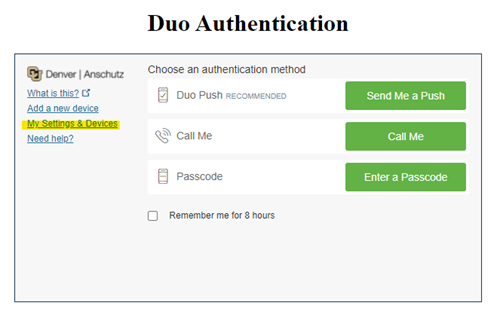
- At the Duo Authentication screen, click “My Settings & Devices” (if you are in a mobile browser, this choice will be under the “Settings” menu in the upper right)
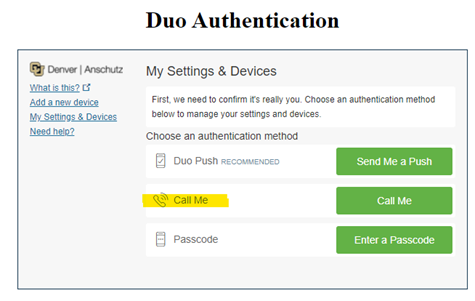
- You will be prompted to authenticate. Use the “Call Me” option, which should still work unless you have changed phone numbers.
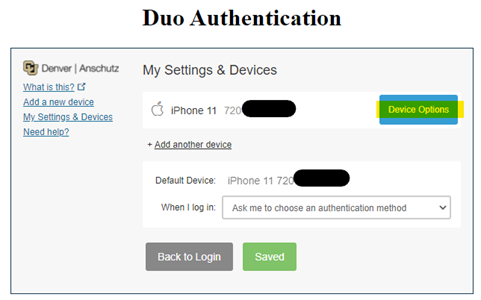
- Click “Device Options” next to your phone number, then click “Reactivate Duo Mobile”
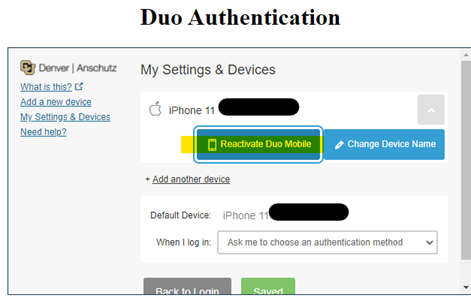
- Follow the onscreen instructions to reactivate Duo Mobile on your new phone.
If these instructions do not work, or if you have changed your phone number, please call the OIT Service Desk at 303-724-4357 or online for assistance.